Three steps
- Connect. The product deploys from Azure Marketplace into your own subscription in about 10 minutes; a Global Administrator completes the one-time setup step.
- Scan with Safe Scan. It scans for your organisation’s keywords and reports; it touches nothing. You can try the rules on sample text first.
- Review, and take the action yourself. You assess the findings; if you want to act, only on what you ticked and within the limit you set. Every step goes into the audit log.
Four scan areas
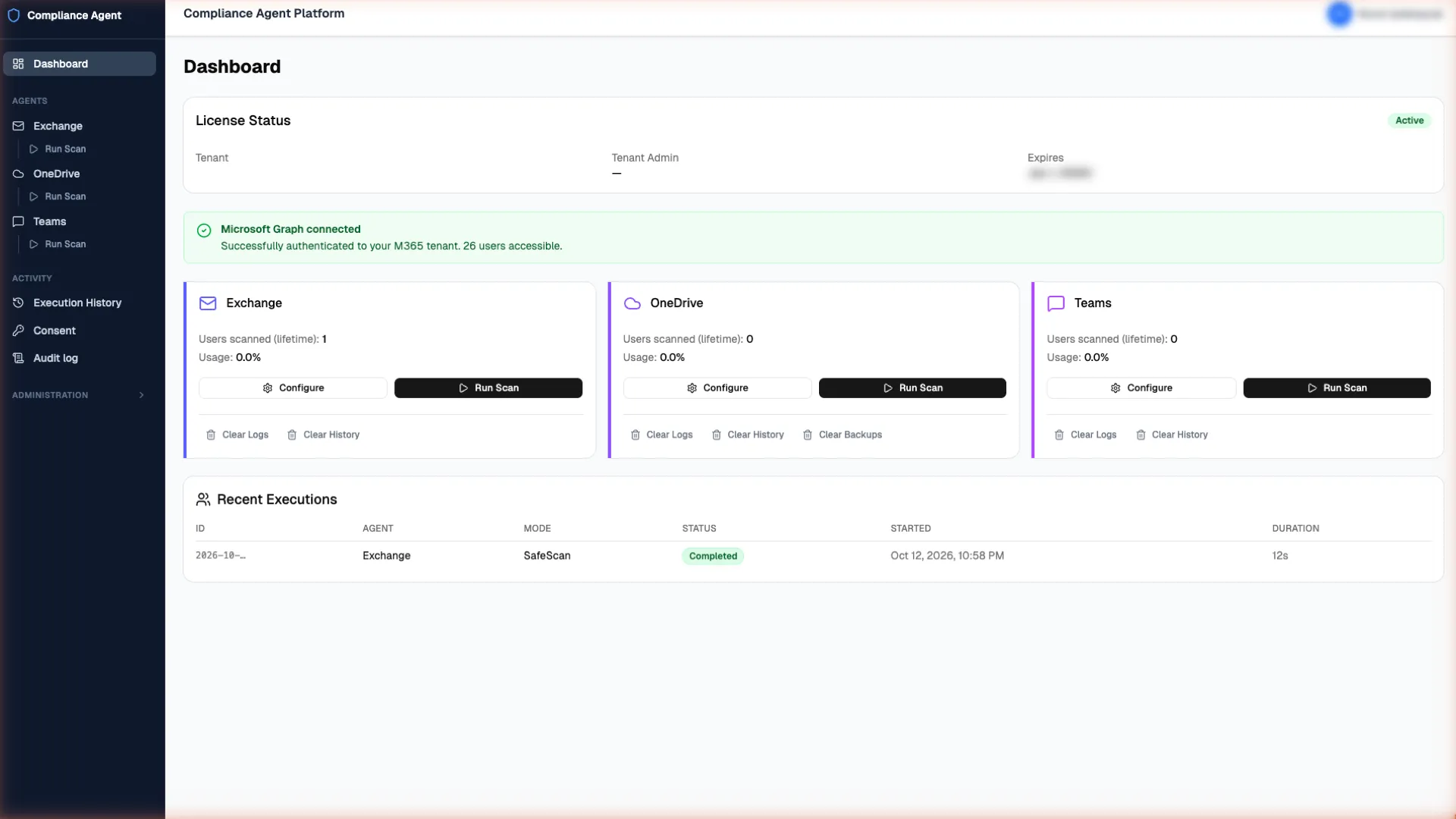
- Exchange: Exchange Online and on-premises Exchange Server; subject and message body. Attachments and online archive mailboxes are not scanned.
- OneDrive: Word, Excel, PowerPoint, PDF, CSV and plain-text files. Images and scanned documents are not read. Files shared outside the organisation are flagged next to the findings.
- Microsoft Teams: one-to-one chats; only the messages an employee sent, if that employee gave permission.
- DiskScanner: scanning of on-premises disk areas; older data that never moved to the cloud.
The same structure in every area: permitted users, keywords, rule packs and settings in one place.
Define your rules
Rules are defined by your organisation from its policies; whether a keyword or pattern is appropriate is your assessment.
- Keywords: you enter the words from your policy or import them as CSV.
- Patterns: patterns can be defined where needed; no regex skills required. Those switched on are included in the scan.
- User group selection: you choose which users are in scope; together with the date range it is the main tool for narrowing the scope.
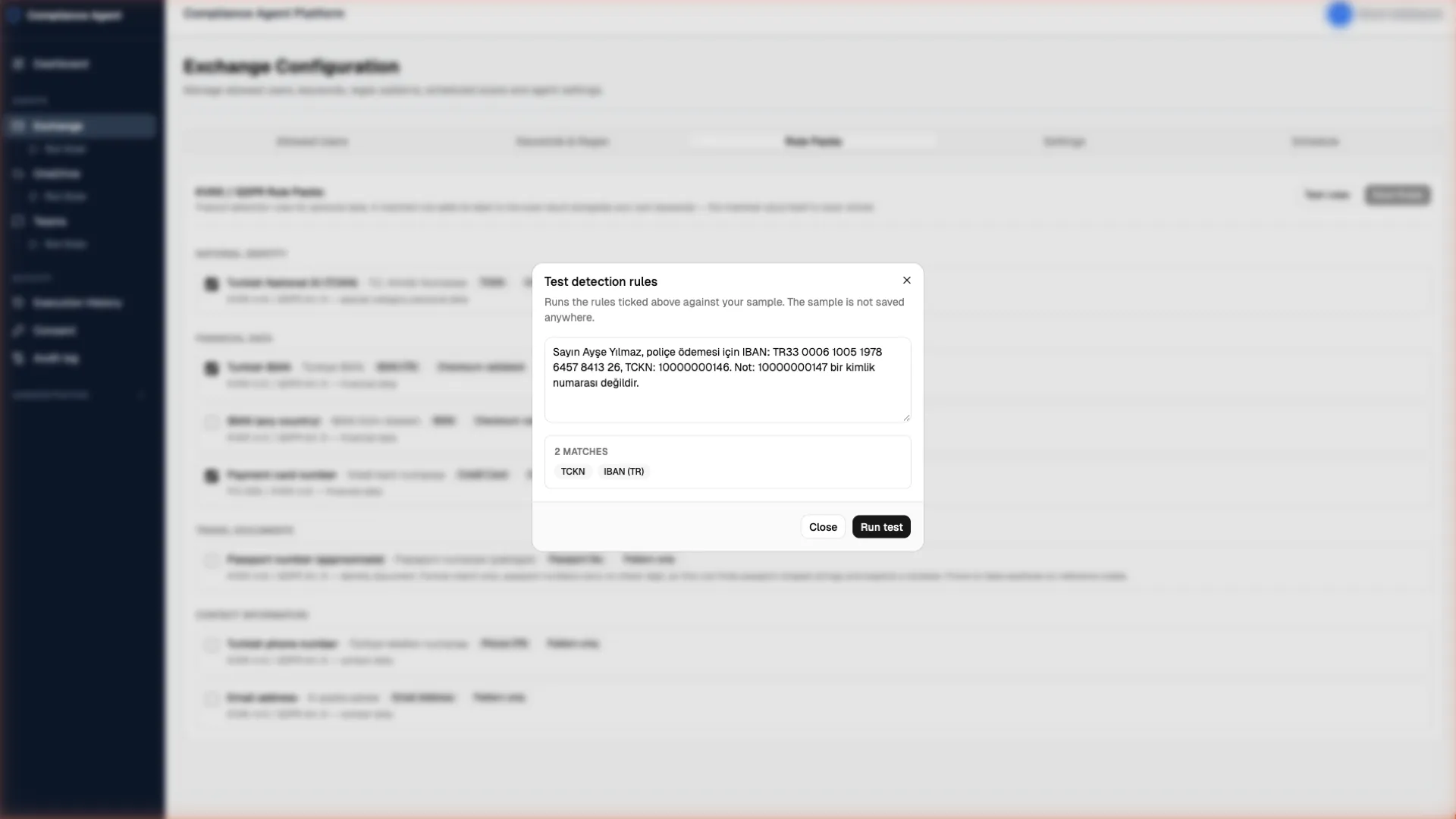
- Try before scanning: you try the rules on sample text (Test rules). The sample text is not stored anywhere.
Ready-made rule packs are optional; they are switched on separately and tried on sample text with Test rules.
Three modes
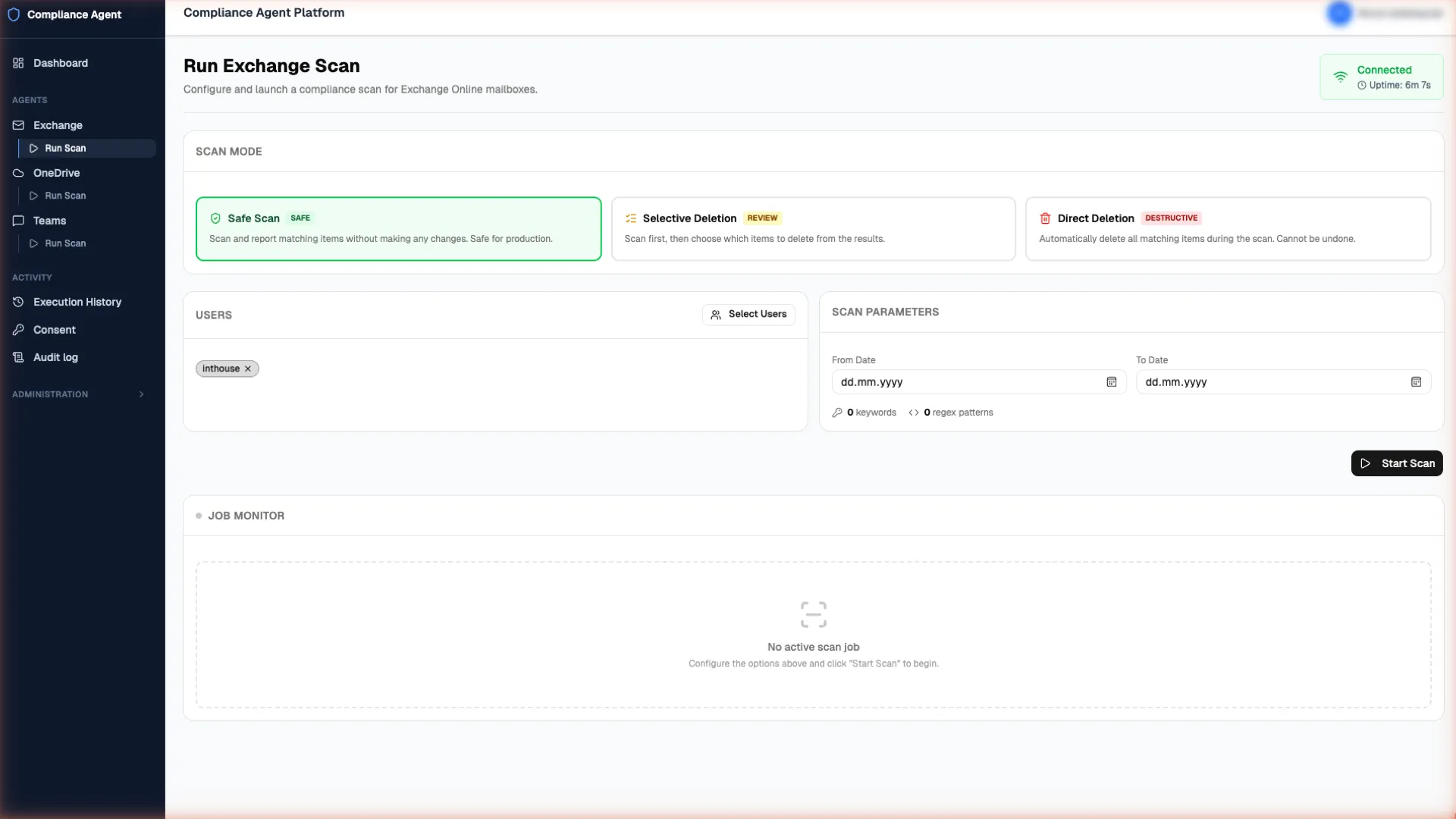
- Safe Scan: scans and reports only; touches nothing.
- Selective Action: a person reviews the findings; the action is applied only to the items they tick.
- Direct Action: when you trust the rules, scan and action happen in one run; items are not put to a person one by one, and it stops at the hard action limit.
Action modes stay off until an administrator turns them on, which is why on a new installation only Safe Scan is possible.
See the results, look at content with a reason
The results show the rule that matched. To view the full content, Reveal asks for a duration, a reason and a request number; every view is written to the audit log. Access to the results depends on the role and should be limited to the fewest people possible. You can export everything to CSV for your records.
The hard action limit: no button to override it
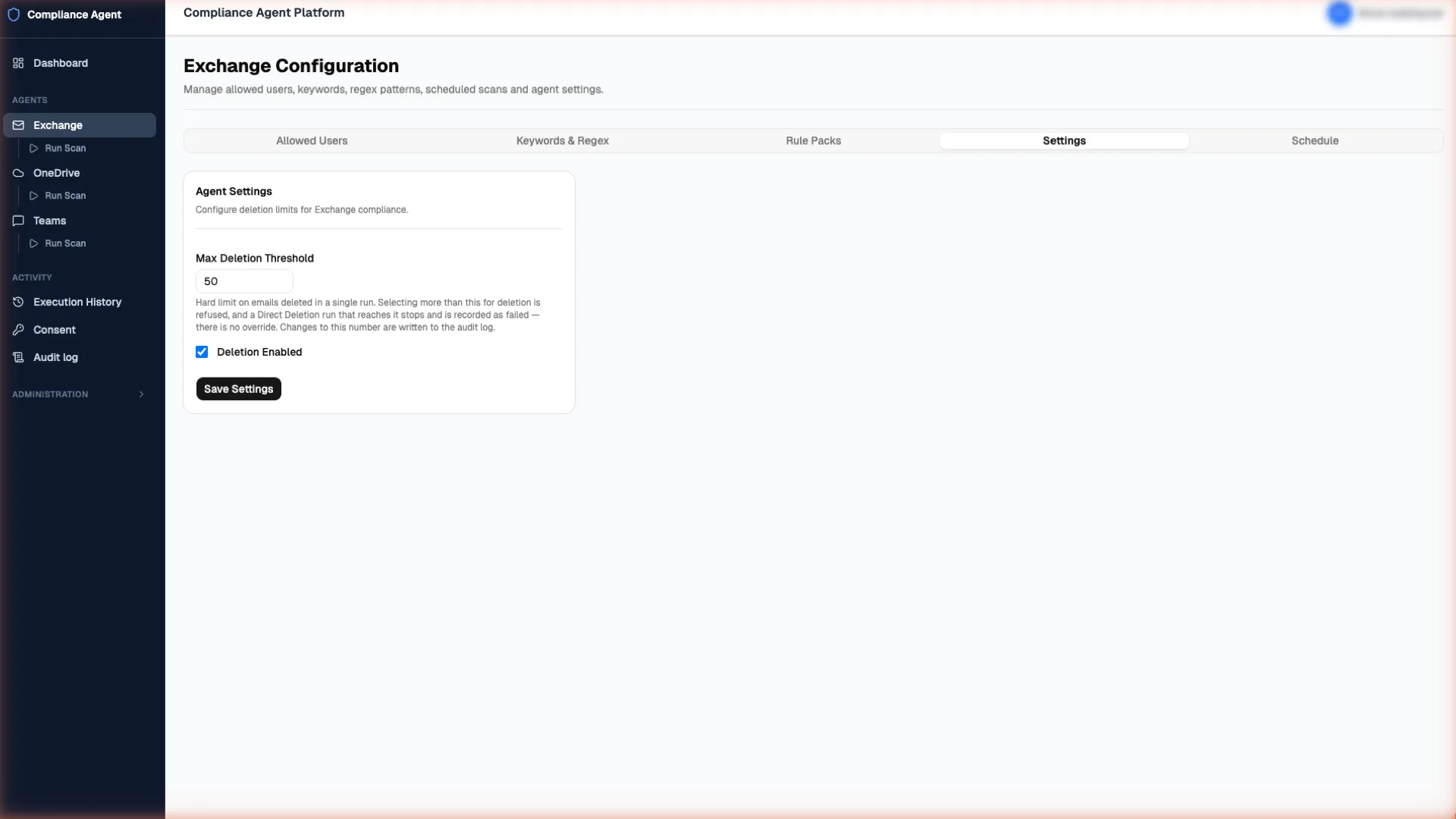
You set a hard action limit for each scan area: the number of items processed in one run. A run that would exceed the limit stops; a Direct Action that reaches the limit stops and is recorded as failed. Going higher needs an administrator to raise the limit, and every change to the limit is written to the audit log.
- Action modes stay off until you turn them on.
- If the audit log cannot be written, the action is refused.
- In Exchange, OneDrive and Teams an action cannot be reversed.
- Before an action, a copy of each OneDrive file is placed in your own Azure storage and kept for 90 days by default; if the copy cannot be made, no action is applied to that file.
Show what you did
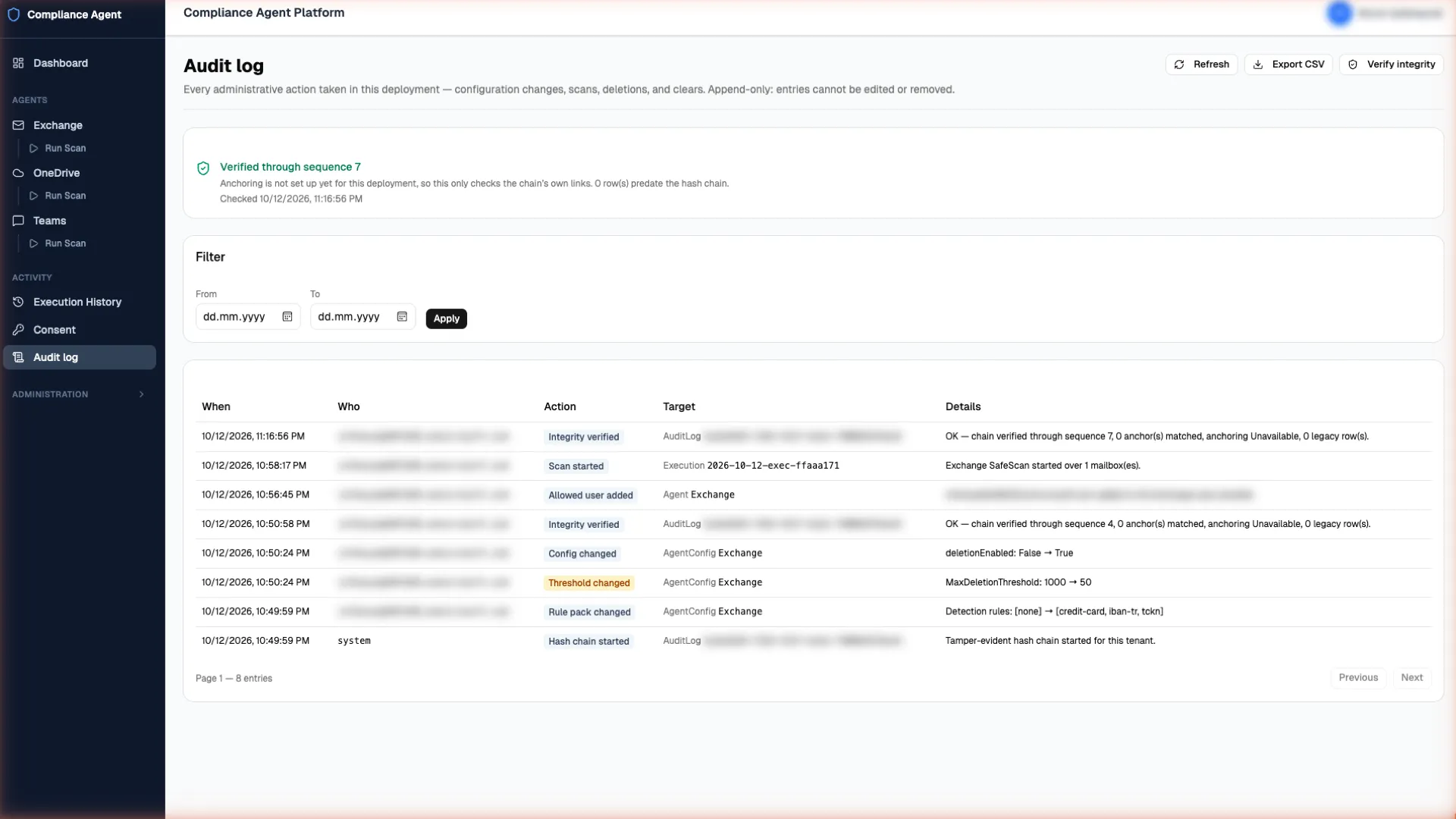
Every administrative step is recorded: configuration changes, scans, actions, limit changes, role changes, exports, Reveal views and permission withdrawals. Nobody inside the product, not even an administrator, can change or remove these entries. The audit log’s integrity can be verified: Verify integrity checks that no entry has been changed or is missing. It can be exported to CSV.
Who can do what?
Three roles; the roles are Microsoft Entra application roles:
- Admin: everything, including security settings and roles.
- Security Manager: runs scans and actions and edits rules, but cannot change security settings or roles.
- Reporter: read-only access to history, results, the audit log and exports, and can run Safe Scan.
Employee permission: in every area
No scan can run without the employee’s permission. Each employee gives permission through a personal link your organisation sends, carrying your logo and your text, in Turkish or English. You can see who has given permission, who is pending and whose permission is about to expire, and resend in one step. The permission does not replace your duty to inform employees and is not a legal ground. Details in FAQ 21.