Three steps
- Connect. You deploy it from Azure Marketplace into your own Azure subscription. That takes about 10 minutes. Then your Global Administrator does a one-time setup step to approve the permissions it needs.
- Scan. You pick the mailboxes or accounts and switch on the rules you want. You start with a Safe Scan, which finds and reports and deletes nothing.
- Review and clean. You look at what was found, tick the items you no longer need, and delete them. A deletion limit you set stops any run that would go over it.
No scripts and no patterns to write.
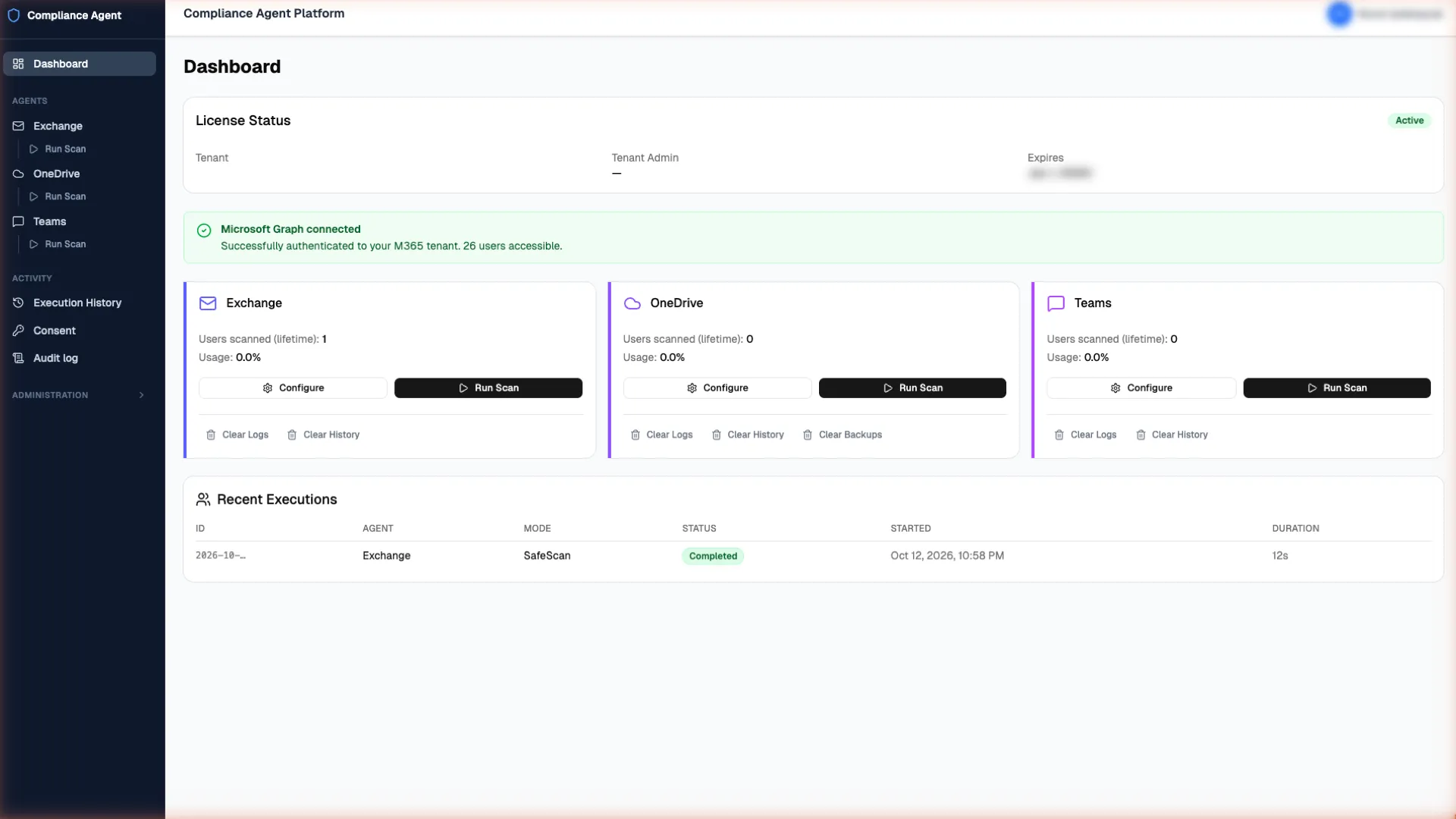
Where it looks
- Exchange Online: every mailbox folder, including nested folders, by subject and message body. Attachments and online archive mailboxes are not scanned.
- OneDrive: Word, Excel, PowerPoint, PDF, CSV and plain-text files. Images and scanned documents are not read. Files shared outside your organisation are flagged next to the findings.
- Microsoft Teams: one-to-one chats, for employees who have opted in. Only the messages they sent are in scope.
Switch on the rules you need
There are seven ready-made rules: Turkish national ID (TCKN), Turkish IBAN, IBAN from any country, payment card number, Turkish phone number, email address and passport number. You switch on the ones you need. They are all off until someone does, and they are set per agent. The ID, IBAN and card rules check the checksum, so a random number is not flagged.
The ready-made rules work in on-demand scans.
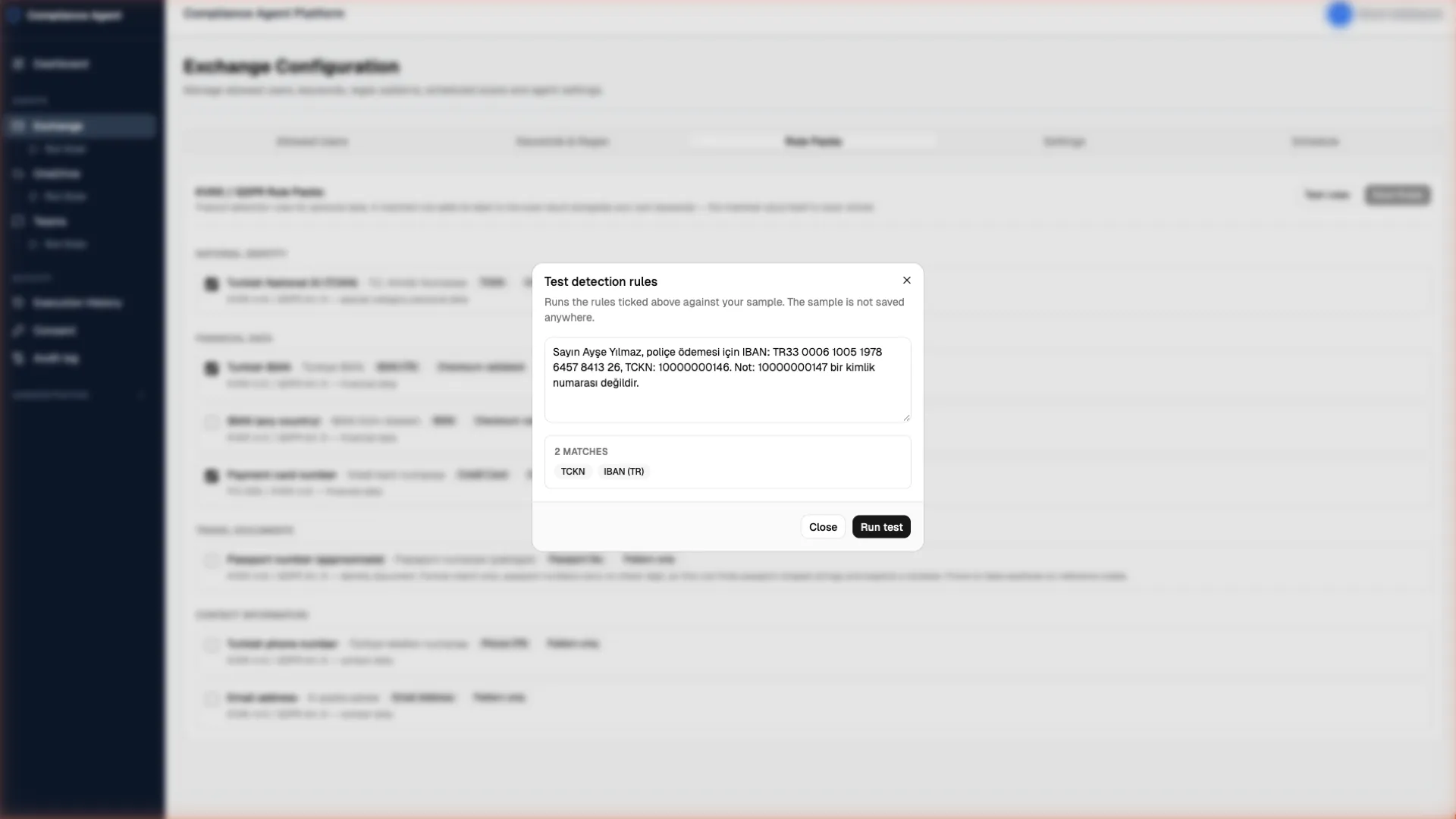
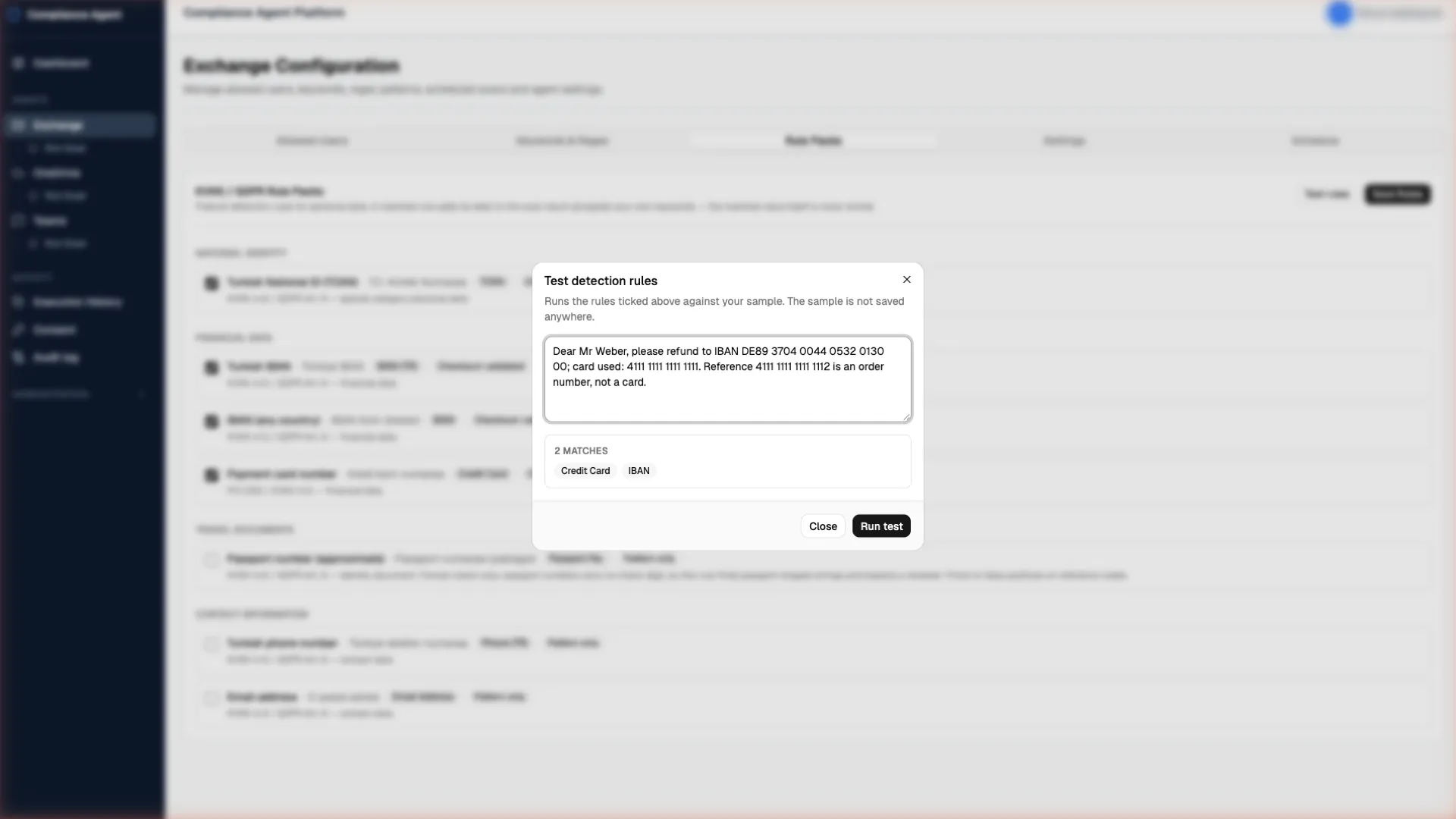
Test the rules on sample text
Before you scan anyone’s mailbox, try the rules on sample text. The valid number is matched, and the one with a wrong checksum is not. That is what keeps the findings list short. The sample is not saved anywhere.
Three scan modes
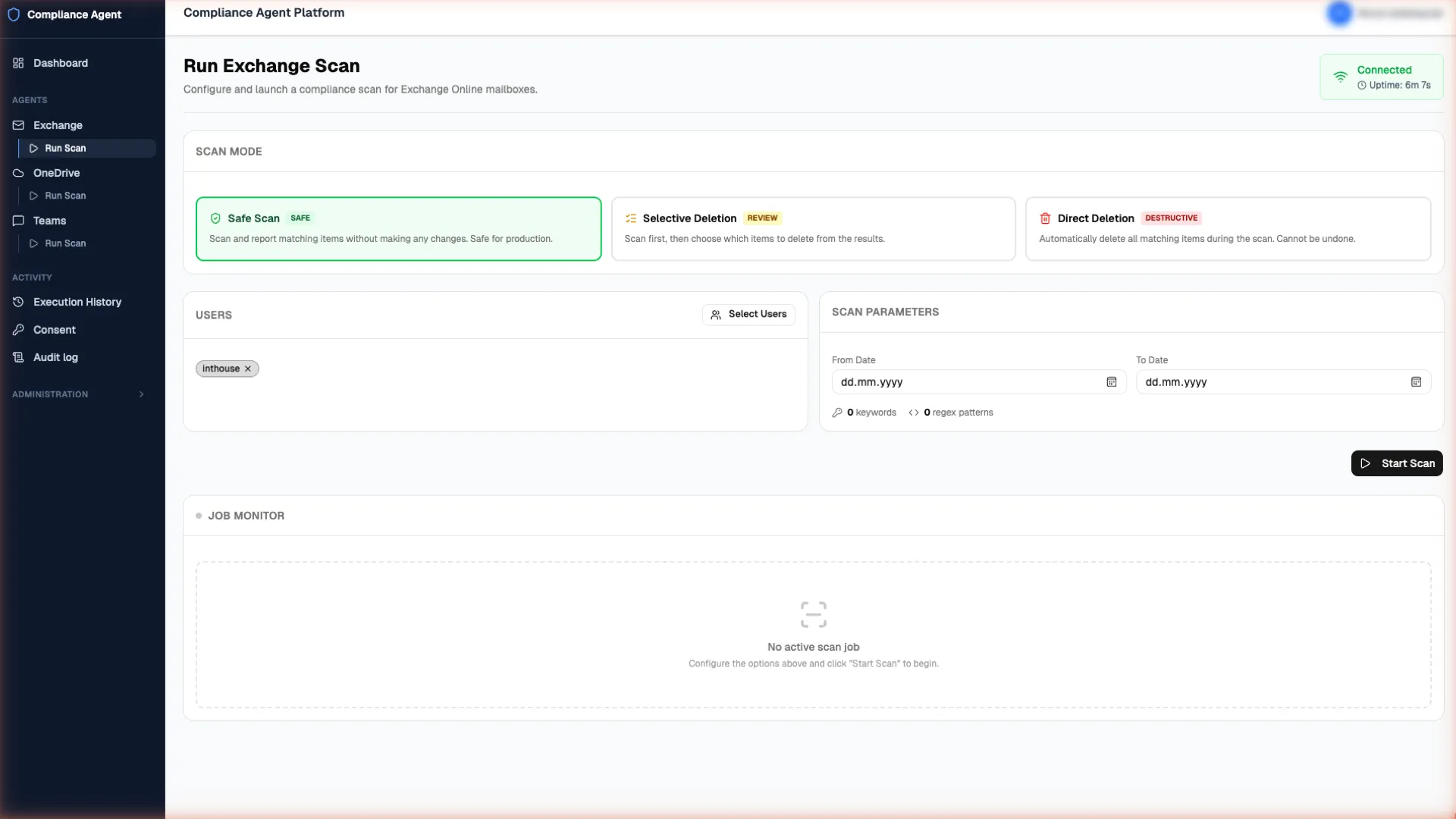
- Safe Scan finds and reports, and deletes nothing. Start here.
- Selective Deletion lets a person review the findings and delete only what they tick.
- Direct Deletion finds and deletes in one run, for when you are confident in the rules. It does not put items to a person one by one.
Deletion is switched off until an administrator turns it on, so on a fresh install only Safe Scan is possible.
Review the results
Each finding shows which rule matched, not the number it found. Results still show subjects, file names and sender addresses, so that a reviewer can decide what to do. Viewing them is a review of content, which is why access depends on the role and should be limited to the fewest people. Everything can be exported to CSV for your records.
A limit that has no override button
You set a hard deletion limit for each agent. If a run would delete more than the limit, it stops. To go higher, an administrator has to raise the limit, and that change is logged too.
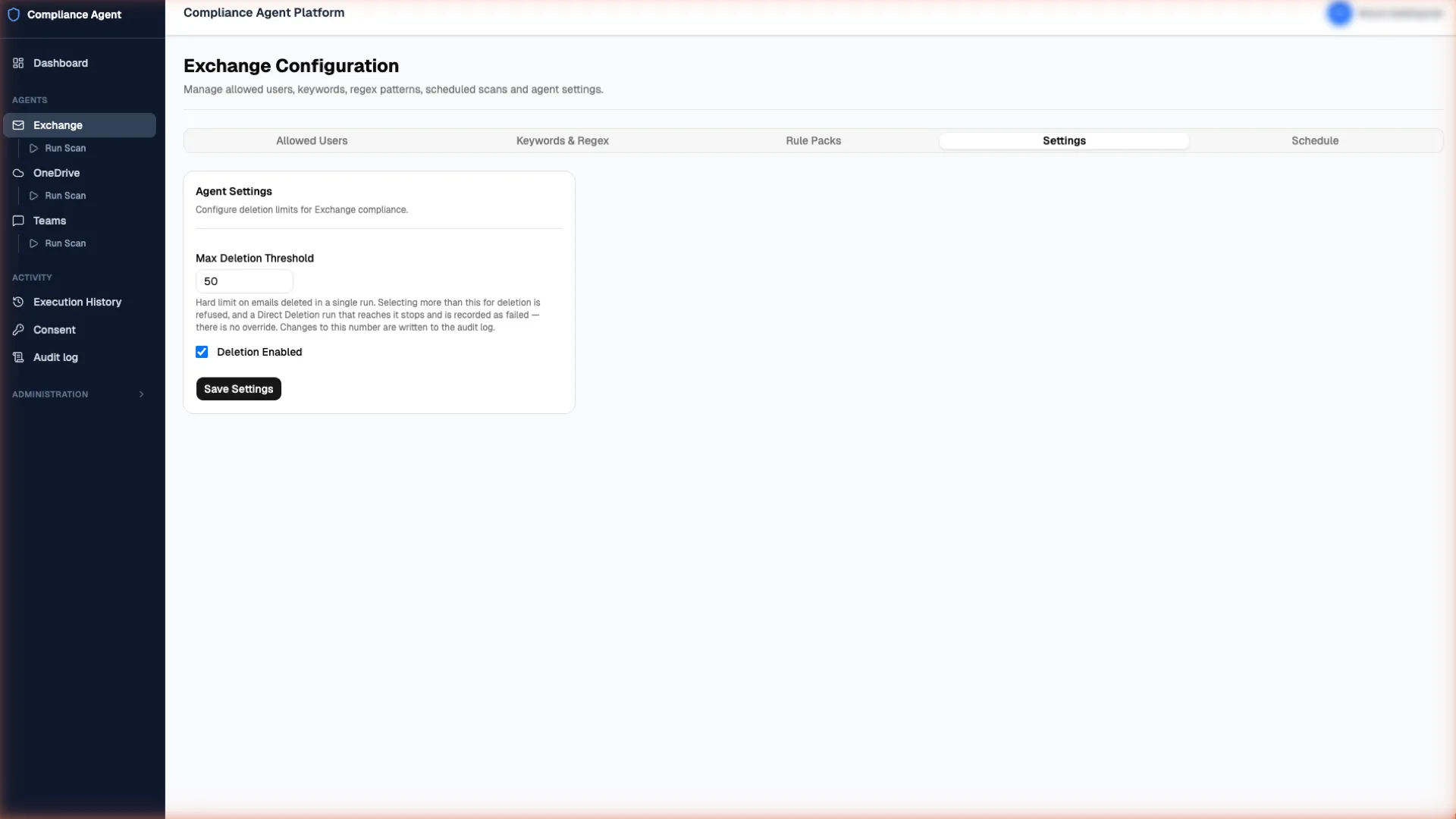
Safeguards that go with it:
- Deletion is deliberate, which is why it is gated by modes, limits, roles and the audit log.
- If the audit log cannot be written, the deletion is refused.
- In Exchange and OneDrive, deletion is permanent. Teams messages are deleted with Microsoft’s soft delete.
- Before a OneDrive file is deleted, it is backed up to your own Azure storage and kept for 90 days by default. If the backup fails, that file is not deleted.
Show what you did
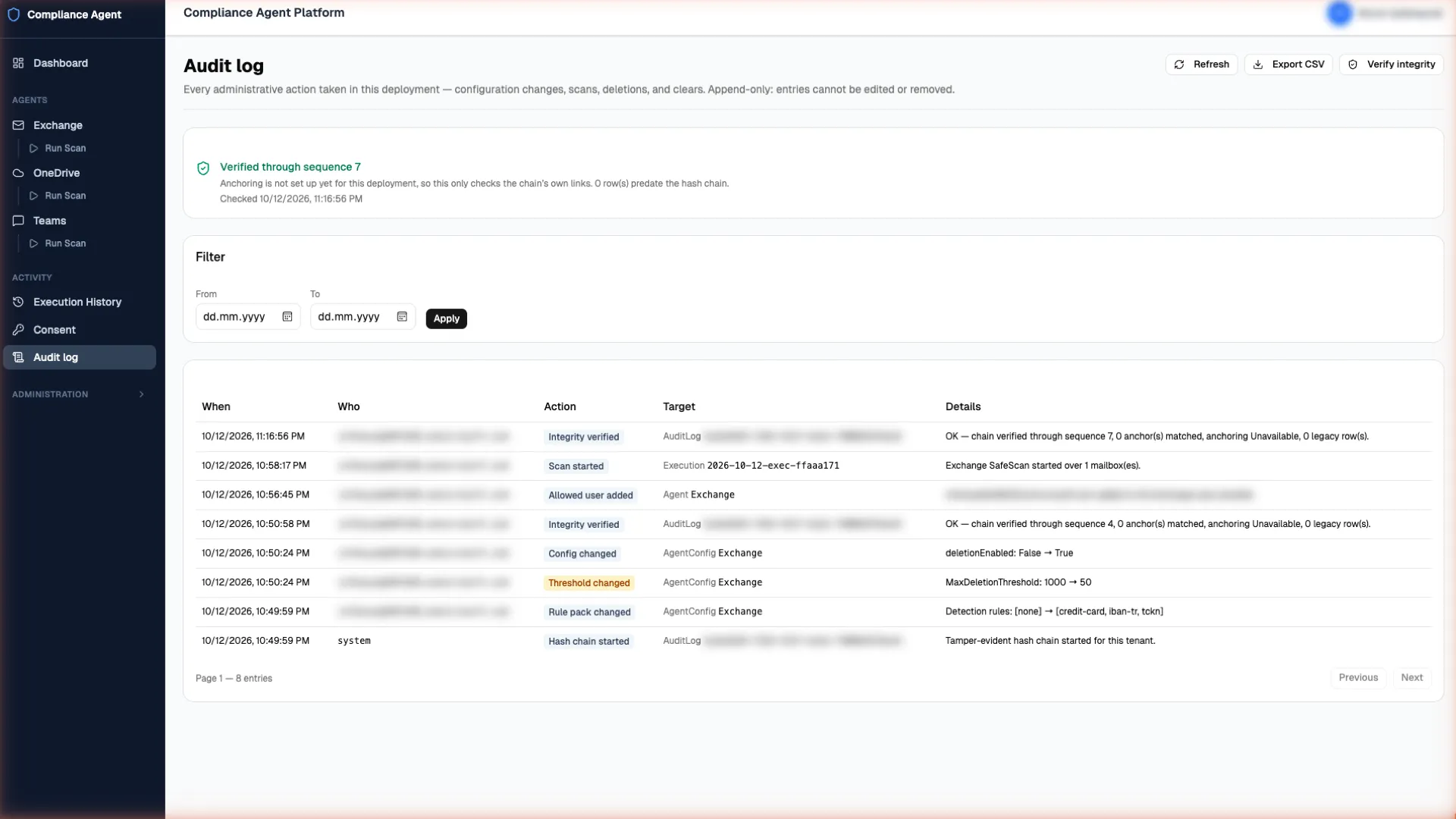
Every administrative action is recorded: configuration changes, scans, deletions, limit changes, role changes, exports and opt-in removals. Nobody, not even an administrator, can edit or delete entries from inside the product. The log is tamper-evident: press Verify integrity to check that nothing has been edited or removed.
Who can do what
Three roles, assigned from the Users page:
- Admin: everything, including safety settings and roles.
- Security Manager: runs scans and deletions and edits detection rules, but cannot change safety settings or roles.
- Reporter: read-only access to history, results, the audit log and exports, and may run a Safe Scan. A good fit for your DPO or auditor.
Teams: each employee opts in
For Teams, each employee opts in personally, from a branded email you send. You can see who has opted in, who is pending and whose opt-in is about to expire. The opt-in lets the product act on that employee’s chats; it does not replace your duty to inform employees. See question 21 in the FAQ.